Showing posts with label Jazz. Show all posts

Friday, January 3, 2014

Using the SCM command-line with JazzHub

JazzHub has a great set of tools for doing web and JavaScript development directly in your web browser. Other types of development work are best done locally because the tools are there. If you happen to be using Eclipse you can find instructions from a JazzHub project page to get started. In this post I will cover how to use the command-line interface (CLI) with JazzHub. It can be a more natural fit if you aren't using the Eclipse IDE for development.

Downloading the CLI

The SCM CLI is available from jazz.net downloads page under the "Rational Team Concert," which is the bug tracking and source control portion of JazzHub. You use the same credentials here as you use for JazzHub. From there you can pick a release (preferably the latest) and go to the "All Downloads" section.

You can go back periodically to get new versions of the CLI. JazzHub is compatible with the latest release of Rational Team Concert but not the milestone releases (M1, M2, RC1, ...). If you don't want to upgrade you can generally use the CLI from previous RTC releases with JazzHub.

Installing on Ubuntu Linux

The installation steps depend on what operating system you are using. For example, if you are using Ubuntu Linux then you can use "Ubuntu Linux package for SCM Tools" from the downloads page. Unzip it and then install using the "dpkg" tool like this:

$ sudo dpkg -i scmtools_x.x.x.deb

If you are using a 64-bit system or you would like more details check out this article.

Installing on Windows / Red Hat Linux / SUSE Linux

Download the "Client for Eclipse 3.6.x IDE" for Linux from the downloads page above. The CLI is bundled with the Eclipse IDE. You don't have to use the IDE if you don't want it.

Unzip it and add the "jazz/scmtools/eclipse" directory to your path. For example, if you are on Windows you can add to the path using the Control Panel \ System Settings \ Advanced Settings \ Environment Variables dialog by adding ";C:\path-to-unzipped-folder\jazz\scmtools\eclipse" to the end of the PATH variable.

Otherwise, you can add something like the following line to your /home/cmcgee/.bashrc file on Red Hat or SUSE:

export PATH=$PATH:/home/cmcgee/jazz/scmtools/eclipse

After you change the system path you can restart your terminal or command prompt and run the "scm help" command to verify that the installation is correct. It should provide a list of the available CLI commands.

Installing on Mac OS X

In the "SCM Tools" section download the Mac OS X edition. Unzip it and add an entry like the following to your /Users/Chris/.bash_profile file:

export PATH=$PATH:/Users/Chris/jazz/scmtools/eclipse

Restart your terminal and run the "scm help" command to verify that the installation is working. Java is needed for the CLI but it is an optional install on Mac OS X. If it is not installed you should be prompted to install it when running the help command.


Registering file types

Although, the SCM CLI understands a number of common source code file types (e.g. C/C++, Java, Javascript, HTML, C#, Python and Go among others) it doesn't have a complete list. If it doesn't understand a particular file type it will treat it as a binary file. This may not be a problem for you. However, the CLI does not automatically convert the line terminator characters from Windows to Unix style (and vice versa) for binary files. Also, the CLI will not attempt to automatically resolve merge conflicts in the file contents when the file is binary.

If your project contains source code with file types that are unlikely to be known to the CLI and you are concerned about the line terminators and auto-merge behaviour then you can tell it about them using a "magic" file. First, create a file called "magic.properties" in either ".jazz-scm" in your home directory on Linux/Mac or in your user profile directory (usually something like /Users/Chris) on Windows. In that file you can create lines that look like this for each of your different file types:

*.groovy: mime: text/plain; delim: platform
  
 Everyone on your team should add the same entries to their own magic file.


Logging in

Now that the CLI is installed you can begin working with your JazzHub project's source code. Many of the CLI commands need to connect to a repository. Each JazzHub project is assigned to a repository with a URL (e.g. https://hub.jazz.net/ccm01). You can find your the URL in the bottom right of your JazzHub project page when you click the "here's how to get setup" link.

Repository URL's are long and when combined with your user ID and password make for alot of typing for each CLI command. Luckily there is a way to cache your credentials and create a nick name for the repository using the login command. This command will log in to the https://hub.jazz.net/ccm01 repository giving it a nick name of "jazzhub01":


$ lscm login -r https://hub.jazz.net/ccm01 -u userid -c -n jazzhub01

You are prompted for your JazzHub password and all of this information is cached using the nick name "jazzhub01." When you invoke CLI commands that require a repository you can use just the nick name for the "-r" parameter and save the extra typing.


Creating your repository workspace

Unlike some other SCM systems much of your day-to-day work is normally kept in your own workspace on the server (ie. repository). Even if you are not ready to share your changes with others you are able to organize them right away into change sets. It's good to keep the changes safely stored in the repository to avoid accidental data loss due to accidental deletion or even hard drive failure.

Repository workspaces hold your own changes but streams are where changes are shared with the rest of the team. To create your repository workspace run the create workspace command to create one named "myuserid-workspace1" to "flow" with your project's stream named "userid | projectname":

$ lscm create workspace -s "userid | projectname" -r jazzhub01 myuserid-workspace1

Each JazzHub project is given a name of the form "userid | projectname" with the userid of the initial creator. This is the name assigned to the project's stream. Also, notice the "-r" parameter with the nick name we created in the last section. Many of the CLI command use this parameter to refer to a repository URL or its nick name.


Sharing your code

If you are working with an established project you can skip this section. When a JazzHub project is new then your first step will be to share the source code you have on your hard disk safely into your repository workspace. Change directory (ie. cd) into the top-level folder of your source code and execute the share command:

$ lscm share -r jazzhub01 myuserid-workspace1 folderWithCode "userid | projectname Default Component"

The workspace name matches the one you used to create it in the previous section. Change "folderWithCode" to the name of the folder you want to share. The last parameter should match your project name with the "Default Component" suffix. Components are a more advanced SCM topic that doesn't need to be covered for our purposes here.

At this point your source code is backed up in your repository workspace but it is not yet visible to the rest of your team. You need to flow, or deliver, the change set to the project stream so that other people can see it.

$ lscm deliver


Loading your repository workspace

If you just finished sharing your code then you can skip this section. When you want to work on an existing JazzHub project you will need to download (ie. load) the contents of your repository workspace on to your hard drive so that you can begin working with it. Create an empty folder on your hard drive, change directory (ie. cd) into it and run the load command.

$ lscm load -r jazzhub01 myuserid-workspace1

This command can take time to transfer all of the files, especially for larger projects. Notice that the repository workspace name is the one you used above to create it. The nick name makes the load command nice and terse.


Working day-to-day

It's a good idea to check your changes in frequently. It can help to back up your work in case of disaster. Also, you can organize your changes right away into change sets. You can use the checkin command like this:

$ lscm checkin path/to/file.txt

The checkin command will automatically create a new change set if necessary and add the change to it. If you want to use more than one change set at a time to organize your changes (e.g. for unit tests) you can use the create changeset command.

$ lscm create changeset

Commands that work with change sets will show the change set ID, which is rendered as a four digit number in round brackets (e.g. "(1024)"). You use the change set ID with the checkin command to place the change into that change set.

$ lscm checkin -c 1024 path/to/file.txt

If you forget what change sets are active in your repository workspace or you want to see what files you have changed that are not checked in you can use the "lscm show status" command. The status information will also show the change set comments and work items. These bits of contextual information can be very helpful down the road. It is good practice to assign a comment and/or associate a JazzHub work item using its number.

$ lscm set changeset --comment "Unit Tests for feature xyz" 1025
$ lscm add workitem 1025 6524

Deliver all of your change sets to the stream with the deliver command. If you want to deliver specific change set(s) you can provide the change set ID's.

$ lscm deliver 1024 1025

Other members of the team will periodically deliver their change sets to the project stream. You can keep track of these new change sets using the "lscm show status" command observing the "Incoming" section. You can flow, or accept, all of the incoming change sets into your repository workspace using the accept command.

$ lscm accept

Once the accept command is complete the changes that you have accepted will show up immediately on your hard disk.


Next steps

The nick name has already saved a significant amount of typing so far. Some of the CLI commands have aliases to make them even more concise. For instance, you can replace the term "changeset" with "cs" in any of the commands shown above. Workitem can be shortened to "wi." Likewise, "checkin" is easily shortened to "ci." Command aliases can be found in the command's help (e.g. "lscm help create changeset").

One really useful SCM pattern is to organize your production code changes and unit test changes into separate change sets. As you are iterating on each set of changes you can temporarily suspend the production change set to validate that they fail without the production changes. When you resume them the tests should pass. You can do this with the suspend and resume commands, or "susp" and "res" if you prefer to save the extra keystrokes.

When you accept change sets from the team's stream you will occasionally run into conflicts. If files are marked as registered as text (see above section) and the content changes occur in different parts of the file the CLI will attempt to automatically resolve the conflict by applying both changes to your file. If changes cannot be automatically merged then you will need to merge in the changes yourself. Check out the show conflicts command to view the different aspects of a conflict and the resolve conflict command to resolve the conflicts in different ways (mine, proposed).

Hopefully, this post has provided some guidance on how to get started with your JazzHub project using the SCM CLI. There are a number of articles that cover how to use it in more depth. Another article was written recently about hacking JazzHub projects from the command line from a slightly different perspective.

Comments and feedback are welcome.

Thursday, July 4, 2013

Configuring Eclipse to use the RTC SDK

Last night I was poking around trying to figure out how to write a demo with the Rational Team Concert SDK. My first attempt failed. It wasn't until I found Ralph Schoon's excellent blog post on using the SDK that I finally figured out how to do it.

Since Ralph's post is long and it refers to an even longer PDF, I thought I'd present an abridged explanation:

  1. Download the RTC SDK and server. At the time of writing, 4.0.3 is the most recent release, so  you might as well grab that. 
  2. Extract the SDK to ~/rtc-sdk.
  3. Start Eclipse on a fresh workspace. 
  4. Set your target platform by:
    1. Open the Eclipse preferences and search for the Target Platform page.

    2. Click "Add" to create a new target platform. Initialize it with "Nothing."

    3. Edit the target platform.

    4. Add an Installation. Point it to ~/rtc-sdk.

    5. Set your target platform as default.
You're done! You can now write programs that use the RTC SDK.

To verify that your Eclipse is properly configured, download the attached project, and copy it into Eclipse. Get your server configured and started, then edit Start.java to use the URI of your server and credentials of the user you created.

You can run the test application with the "api demo" Eclipse launcher. It logs into the server, creates a repository workspace named "meow", and then lists all of the repository workspaces owned by the current user. At the very least, you should see "meow" in the Eclipse Console:
Expected output in a properly configured Eclipse

Sunday, January 27, 2013

When should you start using a source control?

My eyes were immediately drawn to this thread on Ars Technica: "When should I make the first commit to source control?", with answers from Stack Exchange users.

I'm from a team at IBM that is building a source control. So getting my opinion is a bit like asking your stock broker what he or she thinks about the merits of investing on the stock market. Of course I'm convinced the source control should be a transparent part of your development - you should not even have to think about it while you design and edit your code. It should just be there when you're in a bad state and you want to return to a know good one. Aka, you should not even ask yourself when to make the first commit...

A source control doesn't have to be in the way of your dev work. It knows when you save files, and in many IDEs and products out there, it even knows what task or defect you are working on. It can work in the background, safely pushing your changes from your local drive to a remote machine, so you can crash your hard drive or pursue your work from a separate machine in the evening.

A source control is now a basic feature like syntax highlighting, code assist or refactoring. It's a given that whatever you've done, you can review and roll back in time, fork and try something else. Suspend your current work, resume some other on-going work. Work with a buddie, with a team. And when you can do all that without thinking about having to use a source control, then we've succeeded.

The first tip I give about using a source control is to check-in frequently. By that I mean storing your changes frequently in the source control, which isn't the same as giving every one of your changes to your team. Many source controls have a staged approach - you can version control your own changes in a private way then control when you find them useful and good enough to be shared with others.

In the 8 years of RTC Source Control, we tested different source control workflows. In the early days, we were really keen on something called auto check-in. In 1.0, that feature was on by default. You save a file. Bing. That change is safely backed up on the RTC server, in your private workspace. Some of us were wondering - why bother asking the user when to manually check-in? Why not doing it automatically for every file that is modified? It turned out to be a very divisive matter. 
  • Some really thought that was the way of the future - just have every change you do automatically be replicated in your backup on the server. 
  • And others really wanted to stay in control as to when their changes leave their local drive and become part of the source control's memory.
I was initially a strong proponent of the auto check-in workflow. I always thought the ones opposing it were a bit like the mathematician Gauss as described by Abel: "he is like the fox, who effaces his tracks in the sand with his tail". Like you don't want others to know all the wrong paths you've explored before you actually perfected the fix for a defect... That's too bad, because e.g. RTC Source Control has a way to highlight the initial and final versions in a change set and make the intermediate versions mostly hidden in regular operations. 

So why did we turn off auto check-in by default? Because many users were hit by some of its drawbacks.
  • Network latency when you work over a poor wifi connection at the airport
  • Big mess when a mistake you do in your IDE refactors 1000 files.
  • Your history is filled with meaningless changes (if you use auto-complete of change sets) or with huge change sets if you forget to help the tool and complete your change sets from time to time
I did experience all these annoyances myself and was convinced that it wasn't appropriate for a majority of users in its current form. It's fantastic for those users who like the convenience and remember to complete their change sets at appropriate stable moments. I don't use auto check-in anymore. But I frequently check-in my changes so that I can easily go back to a previous good state, and in RTC we make it easy with a simple "Check-in all" button. I only deliver my changes to the stream used by my team when it's ready - after a green personal build for example.

If the source control you use makes a commit sound like a complicated, slow and cumbersome task to perform, you're likely missing the greatest strength of a source control. It's invisible to you when things work, and it's there when you need it. So, in conclusion, next time you create a project, put it under version control right away... Version control is good for you even if you don't intend to share with other peers right away.

Friday, December 21, 2012

Latest videos and articles about RTC SCM

For some of us working in RTC SCM, it's a big snow day, we're not just dreaming about a white Xmas :-) For our developers in locations where snow is a rarity, you cannot imaging the joy of clearing up your drive way... This said, time to reflect on what we've done and published for our RTC users.

Since the articles and videos we listed last July and August, much more has happened in the last  five months.

For CLI users, check out these three videos from Shashik and Sridevi.
If your source code base is large - or should I say, huge - and you have to deal with many variants, you want to carefully think about how to organize it in your SCM. Here are tips illustrated with the popular Android OS code base, from John.
How you use your source with your local tools and how you version it in RTC can be straightforward or very sophisticated. These two articles go to great depth in load workflows.
Yes, process is built-in with every component of RTC - Work Item, planning, build and of course source control. If you're a scrum master, component lead or project manager, this article from Evan is a must read.
And if you want to upgrade to the latest version of your VS IDE, we got it covered... Vandana gives an overview there.
For tips on how we review changes when fixing defects and how we set process conditions to ensure appropriate reviews are in place, have a peek at this blog post from myself, and its two videos.
See you in 2013! We've got more in the pipeline...

Tuesday, November 27, 2012

Try out the latest 4.0.1 RTC SCM in the jazz.net sandbox

It's really easy to get a feel for the latest RTC SCM 4.0.1. The jazz.net sandbox gets you up and running in seconds. All you need is a jazz.net login account. You'll have your own project area hosted on jazz.net, ready for your trial of RTC and SCM.

Create your jazz.net sandbox


  1. Go to www.jazz.net/sandbox . You may have to create a free jazz.net user account if you've never been there before. That will also allow you to open work items and ask questions on the forum.
  2. Pick the option /sandbox2 - you'll get your project hosted on the very latest RTC 4.0.1 server
  3. Give a name to your project area - e.g. mine is called chrisx's 4.0.1 project.

Upload content into your jazz.net sandbox


Click on Source Control / Welcome to Source Control. You're ready to try our latest SCM!


Your project area is mostly empty to start with. It does come with a default stream, into which you can add folders and files. From the Welcome to Source Control page, click on Show Streams and navigate into the one stream listed there. It has one component which contains no files or folders. Adding new files and folders is very easily done through the Web UI. Click on the Add folder icon as indicated below, give it a name and hit save.


Once that folder is created, you can upload new files, etc. Here below we created a new text file named 'readme.txt'.


Invite others to your sandbox on jazz.net


Being alone isn't the greatest way to try a collaborative tool. So go back to www.jazz.net/sandbox, click on sandbox02/ again. This lists all your project areas, including the one you have just created. Click on the Invitations button and bring your teammates to your trial party. Once they accept your invitation, they will be added to your project area. They will be able to see the files you have added earlier to that default stream and start collaborating with you through RTC Source Control.


Try out the other (non Web UI) RTC Source Control clients


At that point you and your co-workers may want to try out other RTC clients such as the Eclipse RTC Client, RTC Client for Microsoft Visual Studio, RTC Shell (which integrates into the Windows Explorer) or the Command Line Interface tool. You can download the desired client (and your own server if you want to go beyond what the jazz.net hosted sandbox provides) at https://jazz.net/downloads/rational-team-concert/.

As an example, I downloaded and installed the RTC Shell client. This client integrates into the Microsoft Windows Explorer, so I can easily sync up files and folders loaded on my local drive and collaborate with my team members. After the installation, you just accept the team invitation (see below) which is available from the jazz.net sandbox (see above).


I followed the recommendations of the 'Accept Team Invitation' wizard. I created a repository workspace from the stream I had been using earlier and loaded its content under my local drive. It created the expected Documents folder and readme.txt file I had added through the Web UI.


This is showing the RTC Shell client integrated into Windows Explorer. This content was loaded from the RTC server hosted on the jazz.net sandbox. I can make changes to these files and folders with my local editors (Notepad etc.), check-in and deliver them so that others in my team can access them.

Summary


It's really easy to get a quick feel for our latest RTC SCM, with the jazz.net sandbox. And if all you want is to play with our Web UI, you have nothing to download!

Friday, November 23, 2012

Icons used in Rational Team Concert Source Control

The Eclipse client for RTC, RTC Client for Microsoft Visual Studio and the Web UI use specific icons to represent SCM artifacts. These base icons are enhanced with extra visuals relative to their status in certain views (e.g. the Team Artifacts view, Pending Changes view, Repository workspace editor, etc.). Here's a list of the basic icons and their variants used in the SCM. If you are not familiar with any of the terms used below, please try out Good practices and key workflows for Rational Team Concert Source Control users for appropriate references.


Stream


 Repository Workspace


Snapshot


 Baseline


Component


  1. Component (if shown within a repository workspace, also indicate it is loaded or partially loaded in my sandbox)
  2. Component owned by a project area
  3. Component owned by me
  4. Component owned by a contributor who isn't me
  5. Component (if shown within a repository workspace, also indicate it is not loaded in my sandbox)


Change Set


  1. Change set (active i.e. not completed, not linked to any work item)
  2. Current change set (active i.e. not completed, auto check-in will default to this change set)
  3. Completed change set (not linked to any work item)
  4. Completed change set linked to one work item
  5. Completed change set linked to two or more work items
If you are puzzled by other SCM icons, please drop a comment below with a link to a screen capture (e.g. attach it to the work item 40464). Hope this reference will be helpful to you.

Note. For icons inside the Pending Changes view, explanations are also provided here.

Friday, September 28, 2012

working with different currencies

One of the things that I like the most about Rational Team Concert is how we solve problems which cross-cut across the developer's perspective.  What this means is that the change sets that a developer produces are linked to work items, which often have a particular process workflow to them.  The change sets are also captured in snapshots via builds, so we have traceability from builds right through to the work item or plan.  We almost take this traceability for granted, having used the product now for > 5 years and counting.  This traceability provides another benefit that may be subtle to some people.

The linking of work items to change sets allows for users of different backgrounds to talk about the same problem in language that they are most familiar with.  We have found that many people indicate that they "deliver work items" to the stream when they are done.   The work item tends to be where the discussion happens, and where consensus is reached.  The code artifacts are derived from that understanding.  So when talking to a development manager, they are interested in knowing that the work item is closed (and the fix delivered) rather than the specifics as to how the fix was done.

So while developers may talk change sets, their bosses may talk work items, or change requests.  Which is why we try and write features which deal in both currencies, like Locate Change Set.


As you see in the above screenshot, Locate Change Set allows users to work with either change sets or work items in order to ensure that people can answer questions using the terms and currencies they are most comfortable with.

Similarly, when someone compares builds, the comparisons come back in the forms of change sets or work items.  We have numerous features in Rational Team Concert that work like this.  When you allow for users to answer questions using the concepts they are most comfortable with, you create an ease of use that really helps to allow different roles to enjoy using the product.  

Thursday, September 27, 2012

Preview - Gap detection when reviewing changes (Eclipse & VS clients)

A developer gets often asked to review the changes associated to a work item. What if some change sets are missing? The new Change Summary view detects inconsistent situations automatically for you.


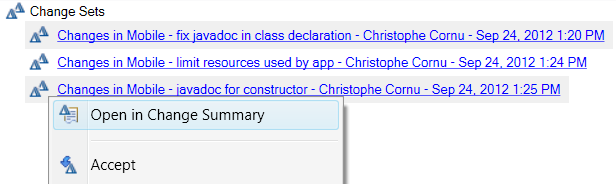
In the above example, the reviewer selected the change sets associated to the work item to be reviewed and clicked 'open'. The Change Summary view shows which files are modified by these change sets. The file MobileWebView.java is flagged with a special decoration - a red square and a description 'in 2 disjoint change sets'. What is so special about this file?

The reviewer decides to double-click on this element. Instead of a compare editor showing the changes to that file, a prompt comes up.


The file MobileWebView.java is modified by 2 disjoint change sets, i.e. change sets that aren't related to each other because they refer to unrelated versions of MobileWebView.java. The Details pane comes up automatically in this case, showing the change sets that have a gap as shown below. The dependency graph is actually disconnected (broken green and red graphs).


The reviewer can ping the developer on the work item and ask him or her if they have forgotten to associate a change set to the work item. In this case, the developer had associated a change set to a different work item by mistake. After moving it to the correct work item, the reviewer could review the three change sets together correctly.

Note. In certain situations, disjoint change sets are expected and perfectly valid (e.g. developer had to do multiple change sets intertwined with deliveries from other team members). The reviewer will simply review each disjoint change set through the Details pane.

Note. Prior to 4.0.1, there was no Details pane. Disjoint changes were represented as multiple nodes in the Change Explorer view with no identifier about which change set they originate from. In 4.0.1, the Change Summary pane and the Details pane provide more comprehensive information in these situations, making code review both efficient and safe.

Note. Visual Studio client figures the same details pane support in the Change Summary view, as illustrated below. This feature was jointly developed in 4.0.1 by a feature team working simultaneously on the Eclipse, Visual Studio and Server development. In prior releases, different component teams were responsible for adopting new features, usually in different milestones.


Note. Expect to be able to try out this new feature with 4.0.1 M4. As we are transitioning toward feature teams and continuous delivery, I am experimenting with previewing our latest work on this non official blog. Go to jazz.net for the latest milestone build and official new and noteworthy. There is no guarantee a preview will make it to a stable build.

Preview - New dedicated Change Summary view for reviewing change sets (Eclipse & VS clients)

Once a bug is fixed, a good practice is to ask one of your peers to review your changes. Ping them on the work item you have resolved or set an approval. The reviewer will be notified and will open the associated change sets.


The reviewer can then go through every file that was modified and open a compare editor showing the combined changes for that file.


In the above example, the reviewer selected the file MobileWebView.java and double clicked (or right clicked and selected the action 'Open in Compare Editor'). This brings up a compare editor that shows how the selected change sets combine to modify that file.


Note. The Change Summary view should look familiar since it is drawn from the previous Change Explorer in the 'Show Files' mode. The previous Change Explorer view supported two modes, one focused on file changes 'Show files' mode and one focused on comparing sources such as streams and workspaces 'Show change sets' mode. In 4.0.1, the 'Show files' mode is evolving with richer capabilities such as the Details pane and is moved to a separate new view named 'Change Summary'.

WorkflowView used in 4.0.1View used in previous releases <= v4.0Artifacts shown
Review change setsChange SummaryChange Explorer in 'Show files' modefiles and folders affected by selected change sets
Compare workspaces, streams, snapshots or baselinesChange ExplorerChange Explorer in 'Show change sets' modeChange sets (e.g. change sets from source stream that aren't in target stream and vice versa)


Note. Expect to be able to try out this new feature with 4.0.1 M4. As we are transitioning toward feature teams and continuous delivery, I am experimenting with previewing our latest work on this non official blog. Go to jazz.net for the latest milestone build and official new and noteworthy. There is no guarantee a preview will make it to a stable build.

Preview - Choose which change sets to review or accept from a work item (VS Client)

The Work Item editor in the Visual Studio client now lets you select the associated change sets you want to open or accept (Press CTRL key and mouse click over the selected change set triangle icon and repeat as desired).


Note. Expect to be able to try out this new feature with 4.0.1 M4. As we are transitioning toward feature teams and continuous delivery, I am experimenting with previewing our latest work on this non official blog. Go to jazz.net for the latest milestone build and official new and noteworthy. There is no guarantee a preview will make it to a stable build.

Thursday, September 20, 2012

Change set under the microscope

RTC Source Control users deal with hundreds or thousands of change sets every day. Let's stop a bit here and have a look at what a change set looks like under a microscope.

Change sets are everywhere. Wherever you put your microscope inside SCM, you'll quickly find them under the cover.
  • In the Work Item editor, as links to the code that was modified to fix that work item.
  • In the Pending Changes view, as the currency you exchange with your team to collaborate
  • In the History view of your workspace or of your team stream, nicely sequentially organized
  • In the Build Results page, showing you what happened to the code since the previous build
  • In a Source Editor, when using the annotate feature
Under the naked eye, this is how a change set looks like, an innocent blue triangle:

When you create a change set, it remembers you for ever. So anyone who finds this change set will know its author. It also knows the date and time related to its creation.

A change set describes its purpose with a comment. It describes its mission with a bi-directional link to a work item. So you can trace back why that change set is there and who approved it, give feedback.

A change set is tied to a component. If you have permission to see the component, you can see the change set. Otherwise you won't. A change set is designed to flow between workspaces and streams, within the same RTC server or between different RTC servers.

A change set knows who it is. It is different from all the other change sets out there in the world. It's important because that is how RTC Source Control is a modern distributed SCM. A change set has a unique ID. We'll never mix your change set with mine, even if we are on different servers.

Now it's time to zoom into the core of a change set. Until now, we were just looking at its outer shell... A change set holds an immutable list of files and folders, with their expected starting state (required to apply the change set) and final state (after the change set is applied). It's immutable once its author decided to seal it (by completing or delivering it). The change set will forever describe how to take a set of resources from a particular state to another particular state.

There are things you won't see in the change set itself. Content of the files changed in the change set isn't part of it. You see, the change set is designed to be a very lean entity so you can scale huge histories of change sets and not hurt the database. Change set only contains the IDs that identify the starting states and final states of the files and folders modified. The content corresponding to these states is efficiently stored once in the DB (keyed with a hash). A change set is a bunch of ID's, not a huge text patch.

Another thing you won't see is path names. The change set stores the name of the files and folders that are modified (or moved, renamed..). But being efficient and portable, it stores only the ID of the parent folder of these modified items. No lengthy path name. Change set describes a change in a mathematically accurate manner (IDs). Of course humans will need to see path strings at some point e.g. src/com/my/project/A.txt. The UI resolves these paths when needed in the context (configuration) in which the change set is used (your workspace, a stream, etc.). For most SCM operations, only IDs matter. IDs are reliable and efficient (and unique). Paths are only useful when a reviewer is looking at the change set.

Sometimes a bacteria runs into another bacteria and consumes it. Some change sets are the result of merging change sets. For each file or folder merged, the change set tracks the starting state, the merge state(s) and the final (merged) state. So a change set knows it represents a merge between conflicting states and the UI can specially decorate it to get user's special attention (hey, did my team mate override my change?).

And this allows SCM to show the following merge graph. It displays the relationship of the states in the change sets forming the history of a file in a particular stream or workspace.


At that point, we've used a regular magnification. But we can push further, though beware most users usually don't get in there. A change set also knows a lot about how its author got to that final state for each file or folder it modifies. In the early stages of a change set, its author checks-in local changes he or she made to files and folders. The same file may be modified and checked-in many times into that same change set. The last check-in will define the final version - the one that will be applied with the change set. But the change set also remembers somewhere very deep each intermediate version that was checked-in before it was sealed. Since 4.0, these versions are available to the user through the File History View / Check-in History pane.


That's how far we will take our journey inside a change set today. It's the building block of SCM, and a pretty solid one.


Friday, August 31, 2012

Back to school with RTC Source Control 4.0 videos

It's almost september. Quickly catch up on some of the latest SCM features we added in version 4.0 (also known as CLM 2012)...

Note these videos support HD (high definition), they are best enjoyed full screen and with the youtube player's video quality changed to 720 (HD).

1. RTC Shell - easily share documents and collaborate with your RTC team from within the familiar Windows Explorer. There are certainly members in your team who will appreciate using a lightweight client instead of a full IDE.


2. Locate change sets - When work items and source control play together, it becomes so easy to figure out which bugs you need to backport. Beware, that feature will greatly simplify your life when dealing with multiple streams. It plays the natural strength of RTC - team artifacts are connected and integrated with each other. That's a feature the SCM dev team uses very frequently itself.


3. Item read permissions - Control who can access specific files and folders within a component. Perfect if you work with third parties and consultants who need deep yet controlled access to your data.


4. File Content Delete - RTC administrators, learn how you can permanently purge unwanted content from an RTC server. Physically remove the bytes of an unwanted document, from wherever it is referenced in the database.


If you know about other videos related to new SCM 4.0 features, please add a comment and a link below. Thanks!

Thursday, August 30, 2012

hacking the jazz.net website using the scm command line

Recently, I switched to running Linux on my laptop.   With this change, I am provided with an opportunity to change the way that I work with RTC.  For the past year, I have been self hosting on the RTC Windows Shell Integration whenever I have needed to deal with documents or files that are not better housed in an IDE (like Eclipse).  But there is no Lightweight RTC Shell on Linux (and one is not yet currently planned).

I am always looking for opportunities to self host more on the RTC SCM command line tool[1].  It has come a fair way over the past couple of years, but since we do Eclipse development so much, it is too easy to fallback on the eclipse client.  I don't really hack much code these days, and I do spend more time writing documents, articles and presentations, so using the CLI to further these endeavours is the way to go.

Setting up my new sandbox for jazz.net tonight, I discovered that there are things that I can do better in the command line.

For example, for a truly large component, like the Jazz.net website, I can programmatically list remote files and grep in order to find exactly the directory I want to load.

lscm ls rf -r repoNickName 1109 1111 /my/directory --depth - | grep uniqueFolderName

where 1109 is a CLI alias for the workspace I am using, and 1111 is the alias for the component.  These aliases are discovered through other queries like "ls comp" or "ls ws" which serve as ways to query and find artifacts in the repository to work against.

Then the load command looks like:
lscm load 1109 MyComponent/my/directory/some/other/path/uniqueFolderName
You can do the same thing when loading in Eclipse, but people often do not choose to navigate through the wizard.  I find that you think differently when using console tools than you do when you use graphical user interfaces.

For one thing, with a command line tool, the onus is on the developer to find ways to optimize their environment more.   Using aliases and writing scripts are two examples of how you can easily customize the way you interact with the system.

Additionally, command line users actually read the help.  All it takes is one type-oh, and as a command line user, you are reading help, or in the very least skimming it.  I can't remember the last time I used help in an Eclipse-based product.

I hope that if you want to try something different when you are working against a filebase which does not endorse a particular IDE or toolchain you will consider the SCM Command Line.  We have numerous articles[2] which are helpful for getting started.

[1] Today I raised this bug on the help : self hosting in action!

[2] Here are some articles.


Sunday, August 5, 2012

Spice up your pending changes view

When you're in a hurry, fast food is convenient. But after a while, you're going to get tired of the limited choice between ketchup and mayo for the dressing. Same thing goes with RTC Source Control. By default, it comes with certain preferences that work well in common situations and will get you started quickly. But once you use the tool extensively, it's time to explore some of the ways you can customize its UI to fit your taste. Here we will focus on the Pending Changes view. We will assume you are familiar with that view and its typical workflows (check-in, accept, deliver...). The view offers you plenty of flavors to choose from...

Auto check-in or not auto check-in?


By default, you have to manually check-in your local changes. Edit a file, save it. A local change shows up in the Pending Changes view. Select it and check it in. That's probably the way you've been working from day 1. There's an alternative way that works really well for certain users. Go to Eclipse > Window > Preferences > Team > Jazz Source Control > Changes > Check-in Policies. Check the Auto check-in local changes option and don't worry about the other options on that page. That's it, you're set. As long as you are logged in, every time you edit and save a local file, the new version gets automatically checked-in. Convenient. Try it and see if you like it. In our experience, some people prefer to drive manual, this is up to you...

Verbose or not verbose?


To help you decide if you are ready to accept or deliver a change set, Pending Changes view shows you various properties related to that change set - the person who created that change set, when it was delivered, files that were added, deleted, renamed, etc. Some users love details. Others prefer a view with no clutter. Turn on or turn off what you want in Eclipse > Window > Preferences > Team > Jazz Source Control > Changes > Label Decorations.

Eclipse compare editor or third party compare editor?


Before accepting or delivering changes, you double click and inspect them in a compare editor. By default, we use the built-in Eclipse compare editor. But there are other options out there in the market, and we know some are very popular. So we make it easy for you to plug in your own compare editor. Use Eclipse > Window > Preferences > Team > Jazz Source Control >  External Compare Tools.
The tool comes with predefined settings for some popular third party compare editors. If yours isn't listed, you can manually specify the arguments it requires from Source Control.

These are in my opinion some of the most useful ways you can tweak your Pending Changes view. If you're a big fan of some other options not listed here, please add a comment and explain how it makes your life easier...

Tuesday, July 31, 2012

SCM Reader's digest for the summer

What are you doing this summer? Going to the beach, training seals at a water park or working at the local cube farm?

Either way, there could not be a better time to grab our new articles freshly posted on jazz.net. You'll learn about the new advanced workflows we've added to Rational Team Concert Source Control in our latest 4.0 release.


 Here's the list...

If you're coming from an older version, you can browse through the 4.0 improvements to Source Control under the new and noteworthy. If you like some of these 4.0 features, please drop us a note on the forum or on this blog, tell us how it makes your life easier... And if I missed a new article about 4.0, let me know!